1.1 Verify Domain & Initialise Cloud Identity
Cloud Identity is one of the sources of GCP user accounts. Crucially, the GCP Organization itself and the super admin account both originate from Cloud Identity. Once you complete domain verification through Google's setup wizard (either by adding a specified TXT record in DNS, or by uploading the HTML verification file Google provides), your Cloud Identity account is created and you land in the Cloud Identity console.
If domain registration runs into an "already in use" problem, you can ask Google for help via this link:
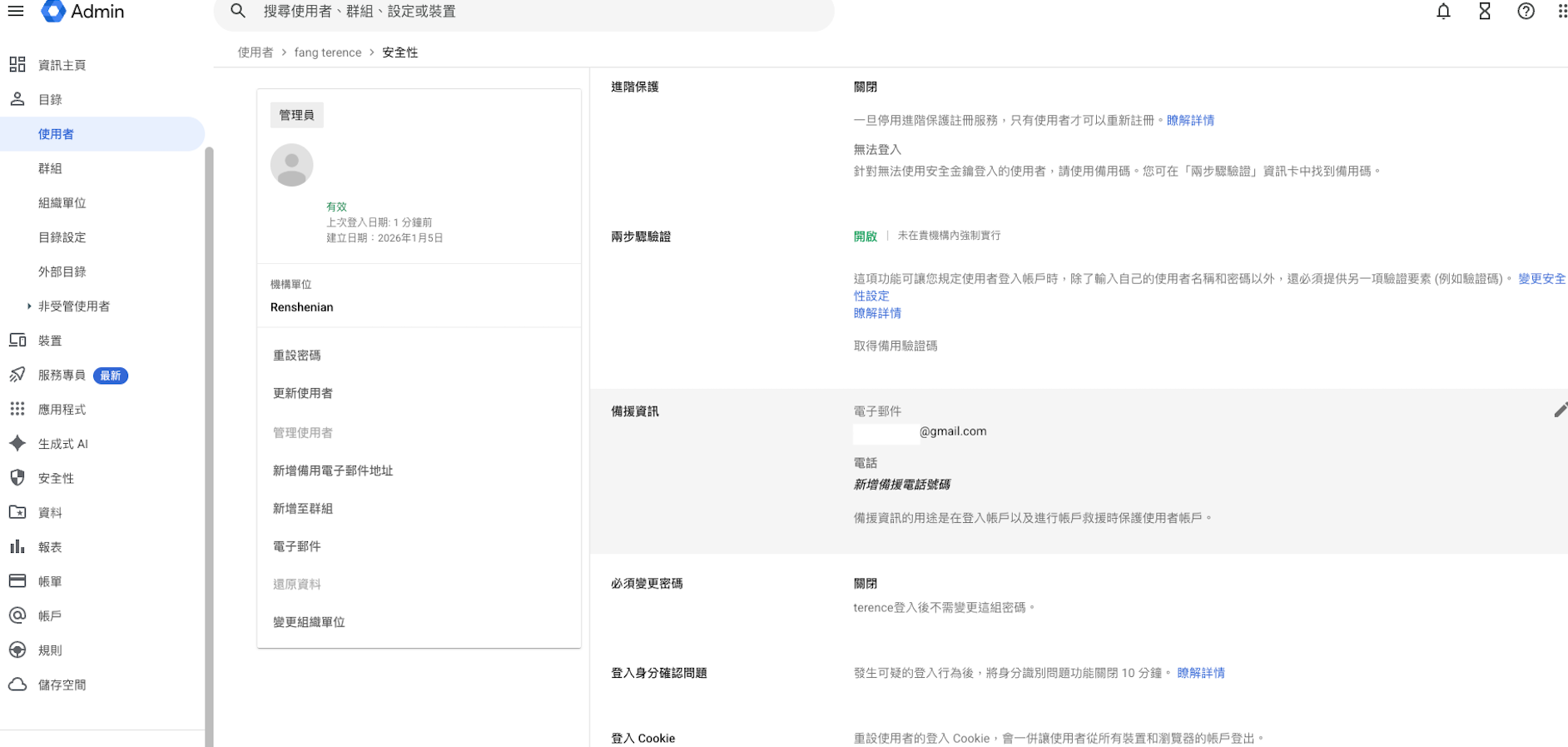
Once you're in the Cloud Identity console, configure the following for the super admin (the account you're currently using):
- Two-step verification
- Recovery information — a backup email and phone number
- A hardware security key (e.g. a Titan Security Key or YubiKey; far more phishing- and SIM-swap-resistant than SMS or an authenticator app)
The Super Admin account carries the highest level of privilege across the entire Cloud Identity / GCP Organization, so it's worth creating 1–2 break-glass emergency access accounts as well:
- Don't tie these accounts to your existing SSO/IdP (e.g. Entra ID) — create them with an independent password directly in Cloud Identity, paired with a hardware security key, so an IdP outage or misconfiguration can't lock you out of GCP entirely.
- Store the credentials and hardware keys properly (e.g. an enterprise password manager plus a safe), and set up alerting for anomalous sign-ins (email/Slack). Leave the accounts unused day-to-day — activate them only in a genuine emergency.
- Rehearse the sign-in procedure regularly (e.g. quarterly) so you know it actually works when you need it.
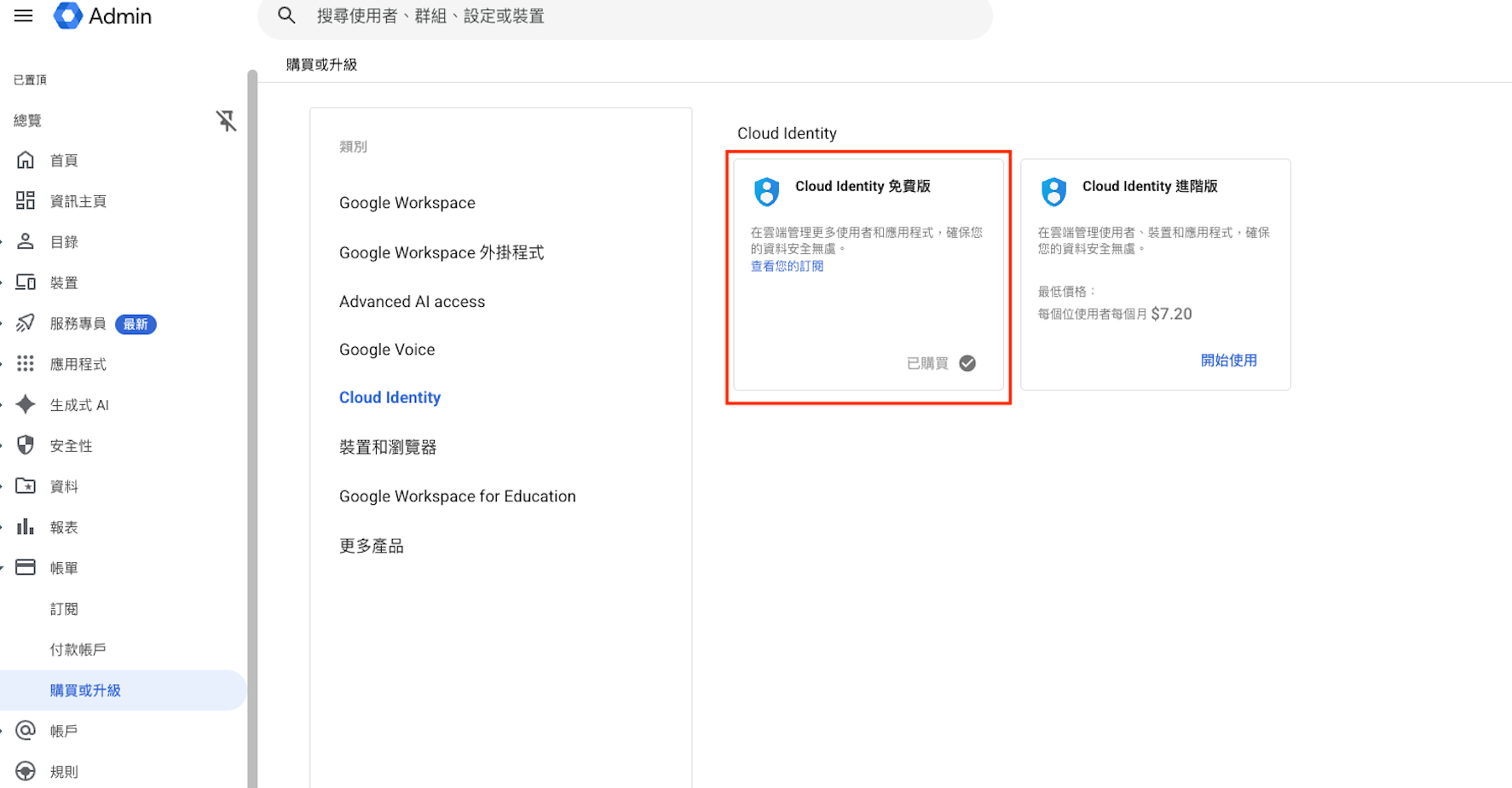
You'll also need to subscribe to the free tier of Cloud Identity — you need the licence quota it provides before you can add users in Cloud Identity or sync them from an IdP.